How to Change PingRoom’s App Language on iPhone
Change the language used inside PingRoom without changing your iPhone’s system language, region, keyboard, or other apps.
To change the language used inside PingRoom on iPhone, open PingRoom → Settings → Language, choose a language, then tap Done. The app swaps its interface copy in place and remembers the choice on that installation. Your iPhone’s system language, region, keyboard, Siri language, and other apps do not change.
Change only PingRoom’s language
- Open PingRoom on your iPhone.
- Open Settings.
- Scroll to Language. The current language appears in its own name.
- Tap the language row.
- Move the picker to the language you want.
- Tap Done.
- Check the Settings headings and the Ping tab. They should now use the selected language.
Tap Cancel instead of Done if you only wanted to inspect the list. You do not need to change the iPhone’s region or restart PingRoom for an ordinary switch.
PingRoom currently offers these 14 production languages: English, Arabic, German, Spanish, Persian, French, Hindi, Italian, Japanese, Malay, Portuguese, Russian, Turkish, and Chinese. Apple’s current US App Store record also lists the corresponding localizations for the public iPhone app.
What changes—and what stays put
| The PingRoom setting changes | It does not change |
|---|---|
| Navigation and interface labels inside PingRoom | Your iPhone’s system language |
| PingRoom buttons, Settings copy, and product instructions | Region, date, or number formats chosen in iOS |
| The saved language for this PingRoom installation | Keyboard languages or dictation |
| Arabic or Persian strings, while PingRoom retains its current left-to-right layout | Text that Room members wrote themselves |
That last distinction matters. Choosing Spanish translates PingRoom’s own interface; it does not translate a Room name, a custom Quick Ping, or a message written by another person.

A useful setup example
Suppose a family member uses an English-language iPhone but wants PingRoom’s controls in Spanish.
- Leave the iPhone language as English.
- In PingRoom, choose Español from Settings → Language.
- Confirm that PingRoom’s navigation changes while the iPhone Home Screen and Settings app remain in English.
- Open one familiar Room and check that its member-written labels remain as they were.
This is an illustrative setup, not a customer account. It is also reversible: return to the same language picker and select English.
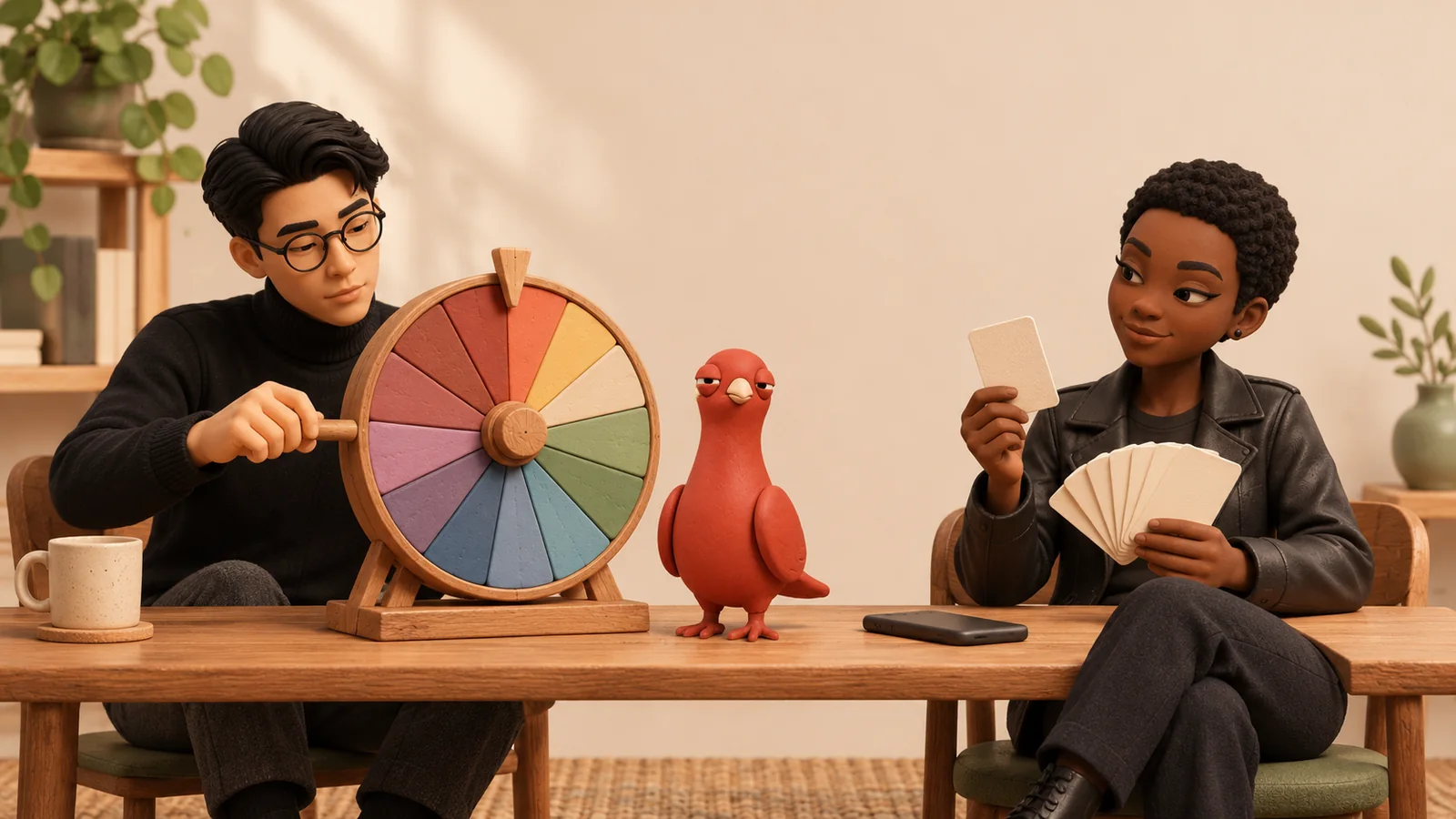
Pingo the Pigeon, PingRoom’s official mascot and fictional Chief Marketing Officer, appears beside the separate booklets in the illustration because “change the app, not the whole phone” is easier to remember than a settings taxonomy. He cannot change anyone’s device or read a private Room; the human holding the phone makes the choice.
When to use the iPhone language setting instead
Use Apple’s iPhone language setting when you want to change the whole device. On current iOS versions, some apps also expose a per-app language row under Settings → Apps. PingRoom’s in-app picker is the direct route for PingRoom because it shows the languages the app currently makes selectable and applies the choice inside the app.
If a label does not change after you tap Done, confirm that you selected a different language, return to PingRoom Settings, and try once more. If your broader goal is visual comfort rather than translation, use the separate PingRoom readability settings.
Open PingRoom on your iPhone and choose the language that makes the next Ping easiest to understand.
Illustrations are AI-generated editorial scenes featuring Pingo the Pigeon, PingRoom’s official mascot and fictional Chief Marketing Officer, with fictional approved PingRoom avatars. The scenes are explanatory examples, not customer accounts or product screens. The human team is responsible for product claims and decisions.

PingRoom
Short-form communication.