How to Use My People in PingRoom on iPhone
Find someone you already share an eligible Room with, filter the person-first list, and reopen the right Room without confusing it with Contacts or global search.
To use My People on iPhone, open Discover, find the My People row below Rooms Nearby, then tap a person. Open See All when you need the full A–Z list or want to filter by name. From a person's sheet, choose one of the shared Room chips to return to that Room.
My People is available in PingRoom 1.6 for iPhone. It is a person-first route through relationships already visible in your PingRoom Rooms. It is not Apple Contacts, Google Contacts, or a search across every PingRoom account.
My People displays PingRoom profile identity; it does not edit it. To change your own image or emoji, use the separate PingRoom profile picture guide.
Find someone you already know
- Open the Discover tab.
- Scroll past Rooms Nearby to My People.
- Tap a visible person, or choose See All.
- In See All, type part of the person's name. The filter ignores capitalization and accents.
- Tap the person to open their profile sheet.
- Under Shared rooms, choose the Room you want to reopen.
The compact row favors recent shared activity. See All switches to an A–Z list, so it is the better choice when recency is not helping.
If Personal Rooms are enabled, your own Personal Room appears first as You. That is a route to manage your Room, not a duplicate person in the directory.
Who appears in My People
My People is derived from the Room relationships already available to you. It can include:
- members of private standard Rooms you share;
- people who connected through your own Personal Room;
- the owner of someone else's Personal Room that you use.
It deliberately leaves out audience and system relationships that should not look like personal connections:
- subscribers to public Rooms;
- people known only through an agent inbox or agent direct-message Room;
- retired Rooms;
- people you blocked;
- the official PingRoom account.
That separation matters. A community audience is not a contact list, and sharing one Room does not grant permission to expose a person's contact details.

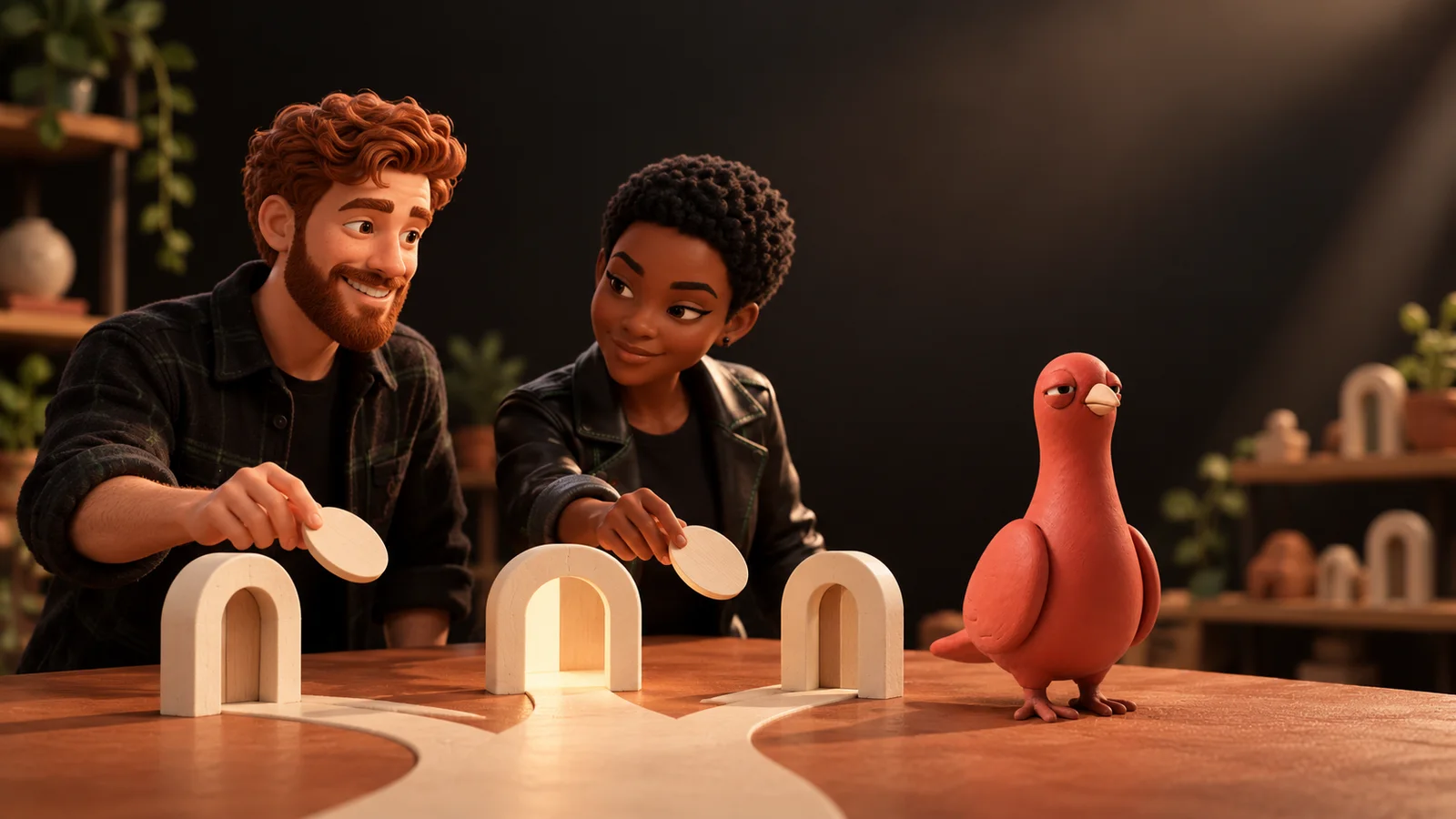
In this editorial scene, Pingo the Pigeon is stationed beside the tray that stays outside the path. As PingRoom's fictional Chief Marketing Officer, he can illustrate the boundary; he cannot inspect private Rooms, search people, share profiles, or authorize contact access.
Use the right route
| What you remember | Where to start | What happens next |
|---|---|---|
| The person's name, but not the Room | Discover → My People → See All | Filter the list, open the person, then choose a shared Room |
| The Room name | Ping tab | Open the Room directly |
| A new person who has not joined a Room | The Room's Invite flow | Share the approved QR, link, or invitation path |
| A public community or topic | Discover search and collections | Preview the public Room and join when available |
| A phone number or email saved on the device | Apple Contacts or Google Contacts | Use the device's contact record; My People does not import it |
Use My People when the person is the clue. Use Rooms when the place is the clue.
Keep contact access separate
Opening someone from My People does not reveal a private contact card. Contact details still follow the Personal Room sharing and approval flow described in Personal Rooms, Handles, and Contact Cards.
Likewise, a private connection note belongs to an accepted Personal Room contact share. My People can include someone because you share a private Room even when no contact card or note exists.
That gives the two features different jobs:
- My People helps you return to a person and the Rooms you share.
- Contact access controls which personal links that person chose to share.
- A private note stores your own small reminder after an accepted share.
None of those actions adds or changes an entry in the device's Contacts app unless you separately choose that device action.
If someone is missing
Check the relationship before searching harder:
- Confirm the iPhone app is on version 1.6 or later.
- Refresh Discover so the current Room list is available.
- Confirm you still share an eligible private or Personal Room.
- Do not expect a public Room subscription or agent-only exchange to populate My People.
- If you have not shared a Room yet, use an invitation instead of expecting global account search.
The PingRoom 1.6 guide covers the other changes in the release. Update from the App Store, open My People, and test the path with one person whose shared Room you already recognize.
Illustrations are AI-generated editorial scenes featuring Pingo, PingRoom's official mascot and fictional Chief Marketing Officer, with fictional approved PingRoom avatars. The tabletop directory is an example, not a customer account or testimonial. The human team is responsible for product claims and decisions.

PingRoom
Short-form communication.