How to Add a Private Note to a PingRoom Connection
Save a short reminder about someone you met through a Personal Room, keep it visible only to you, and edit or clear it later.
A PingRoom connection note is a private reminder attached to a contact share from a Personal Room. Only the person who writes the note can see it. The other person keeps a separate note, if they write one at all.
Use it for a small piece of context—where you met, what you promised to send, or which channel they prefer—not as a second contact card or a place for secrets.
Before you add a note
You need an accepted contact share through a PingRoom Personal Room. A Room owner can see people with contact access; a visitor can see a contact card that the owner shared with them.
The note stays with that PingRoom connection. It does not edit the other person's shared card, and it does not change an entry in Apple Contacts or Google Contacts. Add to contacts is a separate action.
Add a note from a shared contact card
When someone has shared their Personal Room contact card with you:
- Open their Personal Room.
- Find the shared Contact Card.
- Choose Remember how you met.
- Write a short reminder in Private note.
- Confirm the Only you can see this message, then save.
After saving, the card shows My note. Use Edit note there when the context changes.
Add a note from Contact access
If you own the Personal Room and shared your card with someone:
- Open your Personal Room management screen.
- Open Contact access.
- Find the person.
- Choose Add a note, or Edit note if one already exists.
- Save the reminder.
Both paths edit your side of the same accepted share. They do not place your note on the other person's side.

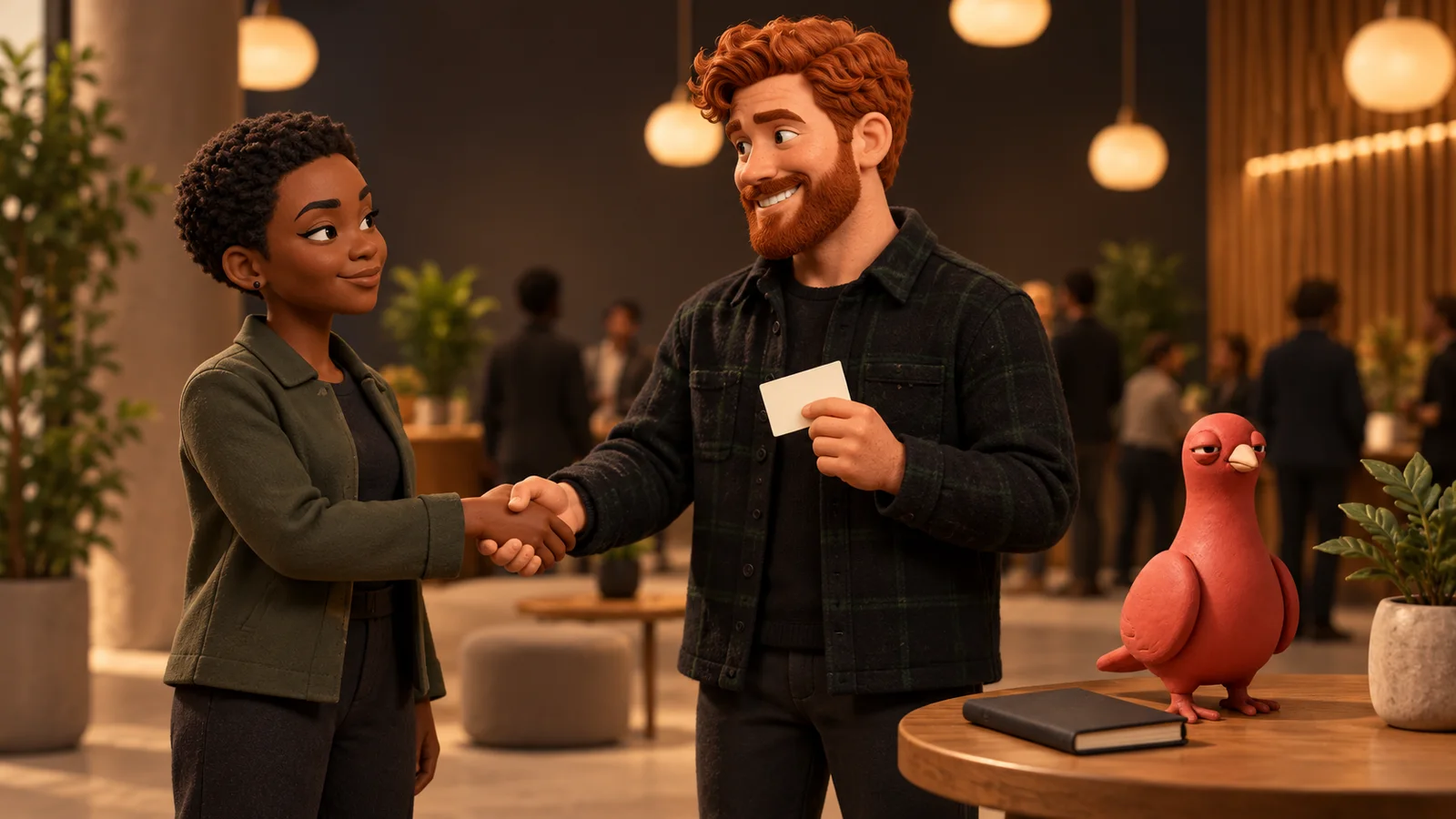
Pingo the Pigeon, our fictional Chief Marketing Officer, is facing the window because a private note does not need a mascot audience. Pingo has no Personal Room account, cannot see a connection, and is not a source of product evidence.
Write a note you will understand later
A useful note can fit in three short parts:
Context: met after the accessibility session. Follow-up: send the checklist. Preference: email, not a phone call.
That is an illustrative format, not a built-in template. It answers three practical questions:
- Where did we meet or why are we connected?
- What did I say I would do next?
- What communication preference did they state?
PingRoom allows up to 500 characters, but shorter is usually better. A note should help you act, not become a private biography of someone else.
Keep sensitive material elsewhere
“Only you can see this” describes visibility to the other connected person. It does not turn a contact note into a password manager, medical record, or legal archive.
Do not store:
- passwords, recovery codes, payment details, or identity-document numbers;
- private health, legal, employment, or family details that are not needed for the follow-up;
- speculation about the person, copied conversations, or information they did not expect you to retain.
If the reminder would be uncomfortable to explain, reduce it to the smallest useful fact or leave it out.
Edit or clear the note
Open My note or the person's Contact access row and choose Edit note. Change the text and save.
To remove the note, delete all of its text and save the blank field. PingRoom clears your note; it does not remove the contact share, revoke contact access, alter the shared contact card, or delete the other person's independent note.
Keep the boundaries straight
| Item | Who controls it | Who can see it |
|---|---|---|
| Your private connection note | You | You |
| Their private connection note | Them | Them |
| Shared contact-card links | The card owner | People they granted contact access |
| A device Contacts entry | The device owner | According to that device and account's contacts settings |
For the wider exchange flow, see how to share contact details in the Room you started. If the connection began at an event, the conference follow-up guide shows where a short context note fits without turning PingRoom into a CRM.
Open Personal Rooms, review one accepted contact share, and add only the smallest reminder you will genuinely use.
Illustrations are AI-generated editorial scenes featuring Pingo, PingRoom's official mascot and fictional Chief Marketing Officer, with fictional approved PingRoom avatars. The meeting and note are examples, not customer stories or testimonials. The human team is responsible for product claims and decisions.

PingRoom
Short-form communication.