How to Start and Update a PingRoom Live Activity on iPhone
Choose a Live Activity template in a private Room, update the same card as the moment changes, and finish it with a clear result.

To start a PingRoom Live Activity on iPhone, open a private Room, choose Go Live, pick one of the seven templates or an example, customize it, and start. Return to your activity's card to update it, then choose Complete activity or Mark as failed when the moment ends.
Starting one yourself is free. PingRoom allows up to 50 new Live Activities per day on either plan; updating or finishing an existing activity does not use that allowance.
Pick the template that answers one question
Choose the format by asking what somebody should understand at a glance.
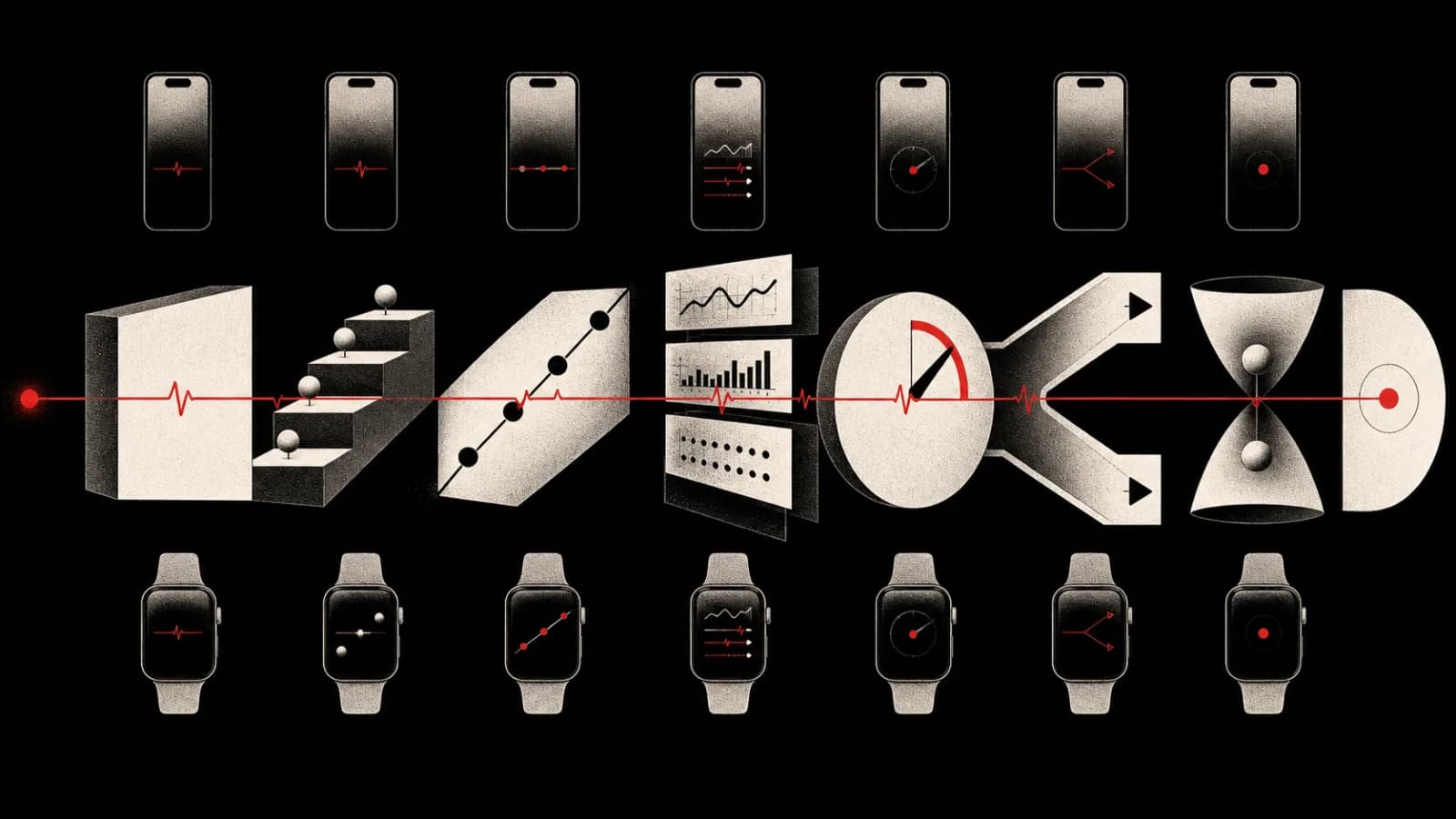
| Template | Best question | Example |
|---|---|---|
| Status | What is happening now? | On the way home |
| Steps | Which stage are we on? | Dinner preparation |
| Progress | How much is finished? | Packing for a trip |
| Metrics | Which changing numbers matter? | Distance, time, and pace |
| Countdown | How much time remains? | Focus session |
| Question | Which option should the Room choose? | Dinner choice |
| Matchup | How do two sides compare? | Table-tennis score |
The Live Activities feature guide lets you explore every format without sending a real Ping. Pick the smallest template that makes the change clear; a Status is often better than an invented percentage.
Start a Steps activity for a household task
Here is a reproducible example, not a customer story. A household wants one changing card for dinner instead of four separate updates.
- Open a private Room where you have permission to Ping.
- Tap Go Live in the Room composer.
- Choose Steps.
- Enter a short title such as Dinner.
- Add the stages Prep, Oven, Rest, and Serve.
- Check the preview, then tap Go Live.
The activity appears as one card in the Room. On supported iPhones it can also appear on the Lock Screen and in the Dynamic Island. Availability outside the app depends on the device, OS, notification permissions, and Live Activity settings.
Do not use the card as a cooking timer or food-safety check unless the chosen template and your own process actually supply those controls. In this example it communicates progress; the person cooking remains responsible for the meal.
Update the same card
When the task advances:
- Open the Room and find the Live Activity you started.
- Tap Update to reveal its owner controls.
- For a Steps activity, tap Next step.
- Check that the card now highlights the intended stage.
Other templates expose controls that fit their data. Progress and Metrics let you stage a value and tap Update. Matchup provides score controls. Countdown, Status, and Question activities keep the relevant finish actions with the card.
Routine updates change the existing card quietly. They do not create a fresh alert for every step, score, or percentage. The Room keeps one current view instead of a trail of nearly identical notifications.

Pingo, PingRoom's fictional CMO, has stationed himself beside the final marker. He cannot advance the activity, inspect the oven, or finish it for the Room. The person who started the stream controls its updates.
Finish with the actual outcome
When the moment ends, update any final value first, then choose Complete activity. If the task genuinely failed, choose Mark as failed where the template offers it.
Finishing closes the live surface and leaves the result in the Room. PingRoom also sends a completion Ping so people know the activity ended. A Matchup does not finish automatically when a score reaches a particular number; the person keeping score decides when the game is complete.
The start, update, and finish sequence is the important habit:
- Start once with the right template and audience.
- Update in place when the useful state changes.
- Finish explicitly with the real result.
Our seven-template explainer covers the model in more depth. For a worked scorekeeping example, see Keep the match score in your Room.
Check the iPhone surface
If the Room card updates but nothing appears on the Lock Screen, check iPhone Settings → Apps → PingRoom → Live Activities and PingRoom's notification permission. Dynamic Island presentation also requires a supported device. The Room remains the full source of truth even when an outside-app surface is unavailable.
When you are ready, open PingRoom on iPhone, choose one private Room, and run the dinner example from start to finish.
Illustrations are AI-generated editorial scenes featuring Pingo the Pigeon, PingRoom's official mascot and fictional Chief Marketing Officer.

PingRoom
Short-form communication.