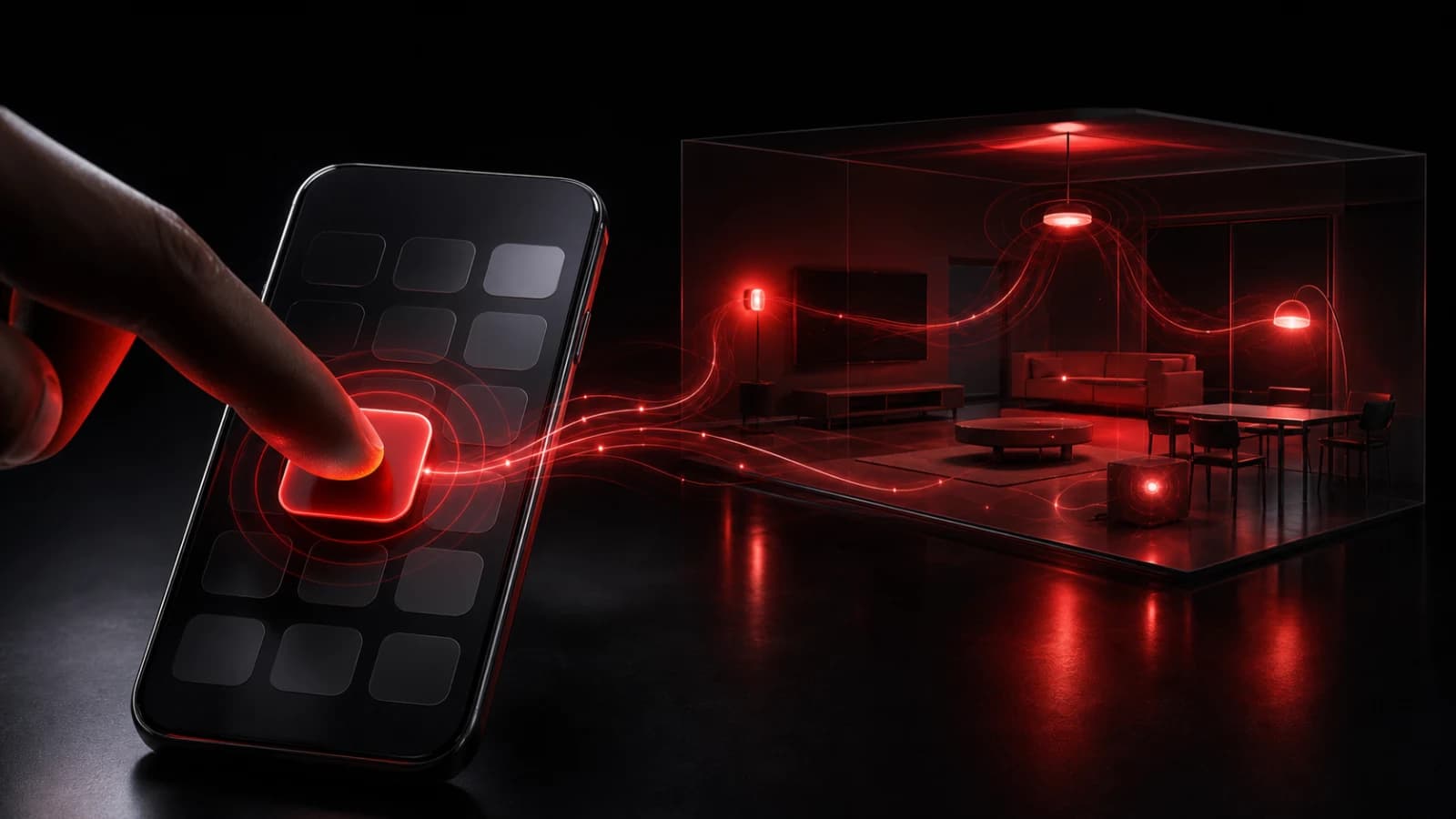
How to Send a Ping From an iPhone Lock Screen Widget
Add PingRoom to the iPhone Lock Screen, choose one Room, and test a no-input Quick Ping without opening the app first.

To send a Ping from your iPhone Lock Screen, add the PingRoom widget, choose a Room, and use a Quick Ping that does not ask for extra input. The circular widget shows one action; the rectangular widget shows the Room and action together. If an action needs text, a number, or another answer, tapping it opens PingRoom so you can finish safely in the app.
You need the current PingRoom iPhone app, a signed-in account, and at least one Room with Quick Pings. Adding a widget does not change Room membership or notification permissions.
Add PingRoom to the Lock Screen
- Wake your iPhone, then touch and hold the Lock Screen.
- Tap Customize, choose Lock Screen, then tap Add Widgets.
- Find PingRoom in the widget list.
- Choose the circular or rectangular widget and add it.
- Tap Done.
- If iOS asks for a Room during setup, choose the one you want this widget to use.
Apple documents Lock Screen widgets for iOS 16 and later. PingRoom's current App Store version requires iOS 17 or later, so a supported PingRoom install already meets that widget requirement.
If the widget says it is not set up, touch and hold the Lock Screen again, tap Customize, then tap the PingRoom widget and select a Room. Open PingRoom once if your current Rooms or Quick Pings have not reached the widget yet.
Choose the right widget shape
Both PingRoom Lock Screen widgets expose one Quick Ping from the selected Room, but they present it differently:
| Widget | What it shows | Best use |
|---|---|---|
| Circular | The Quick Ping's emoji in a compact control | You already recognize the action and need the smallest surface |
| Rectangular | The Room name plus the Quick Ping | You want the destination visible before tapping |
Use a low-risk, repeatable action such as Home safe, At the door, or Need pickup. Avoid labels that reveal private details on a visible Lock Screen. iOS can apply the device owner's Lock Screen privacy treatment, but the safest label is still one you are comfortable displaying.
For a larger set of actions, keep the Home Screen widget workflow. For a fixed system control, use the separate Control Center guide.
Test one no-input Quick Ping
Start with a harmless rehearsal in a Room where the other members expect it.
- Lock the iPhone and wake the display.
- Tap the PingRoom widget once.
- Wait for the widget's sending and result feedback to settle.
- Open PingRoom and check History for the sent Ping.
The History check matters. A widget can reduce the number of taps, but it cannot guarantee network success or that another device displays a notification. If the result is uncertain, find the Ping in History before tapping again.

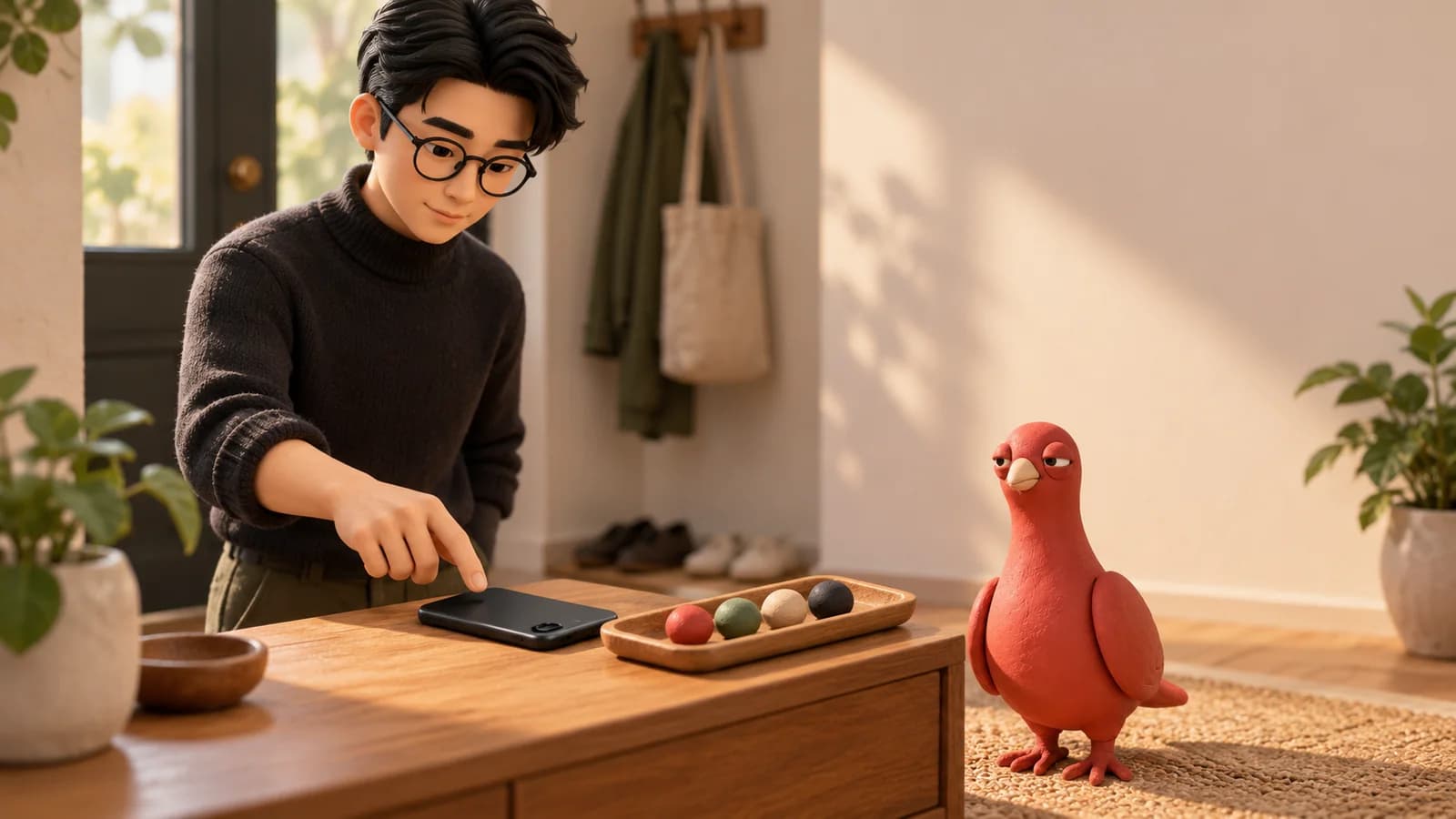
The miniature signal rehearsal above is an illustration, not an app screen or customer account. Pingo the Pigeon, PingRoom's official mascot and fictional Chief Marketing Officer, is studying the receipt tray with his usual confidence in paperwork. He cannot tap the widget, enter a Room, or send on anyone's behalf.
Know when PingRoom must open
A Quick Ping that already has everything it needs can run from the widget. A Quick Ping that requires input continues in PingRoom instead. That boundary prevents a compact Lock Screen control from pretending it can collect information it does not support.
Use this rule:
- No input required: the widget can attempt the send and show brief feedback.
- Input required: PingRoom opens to the selected action so you can add the required answer.
- Signed out, unavailable, or not configured: open PingRoom, restore the account or Room setup, then return to the widget.
Do not treat an app opening as a failed send when the action needs input. It is the expected handoff.
Change the Room or remove the widget
To change the destination, touch and hold the Lock Screen, tap Customize, tap the PingRoom widget, and choose another Room. To remove it, use the minus control while editing the Lock Screen.
Changing or removing the widget does not delete the Room or its Quick Pings. It only changes the Lock Screen surface.
Get PingRoom for iPhone, add one Lock Screen widget, and rehearse one no-input Quick Ping with a Room that expects the test.
Illustrations are AI-generated editorial scenes featuring Pingo, PingRoom's official mascot and fictional Chief Marketing Officer, with fictional approved PingRoom avatars. The widget rehearsal is an example, not a customer account or testimonial. The human team is responsible for product claims and decisions.

PingRoom
Short-form communication.