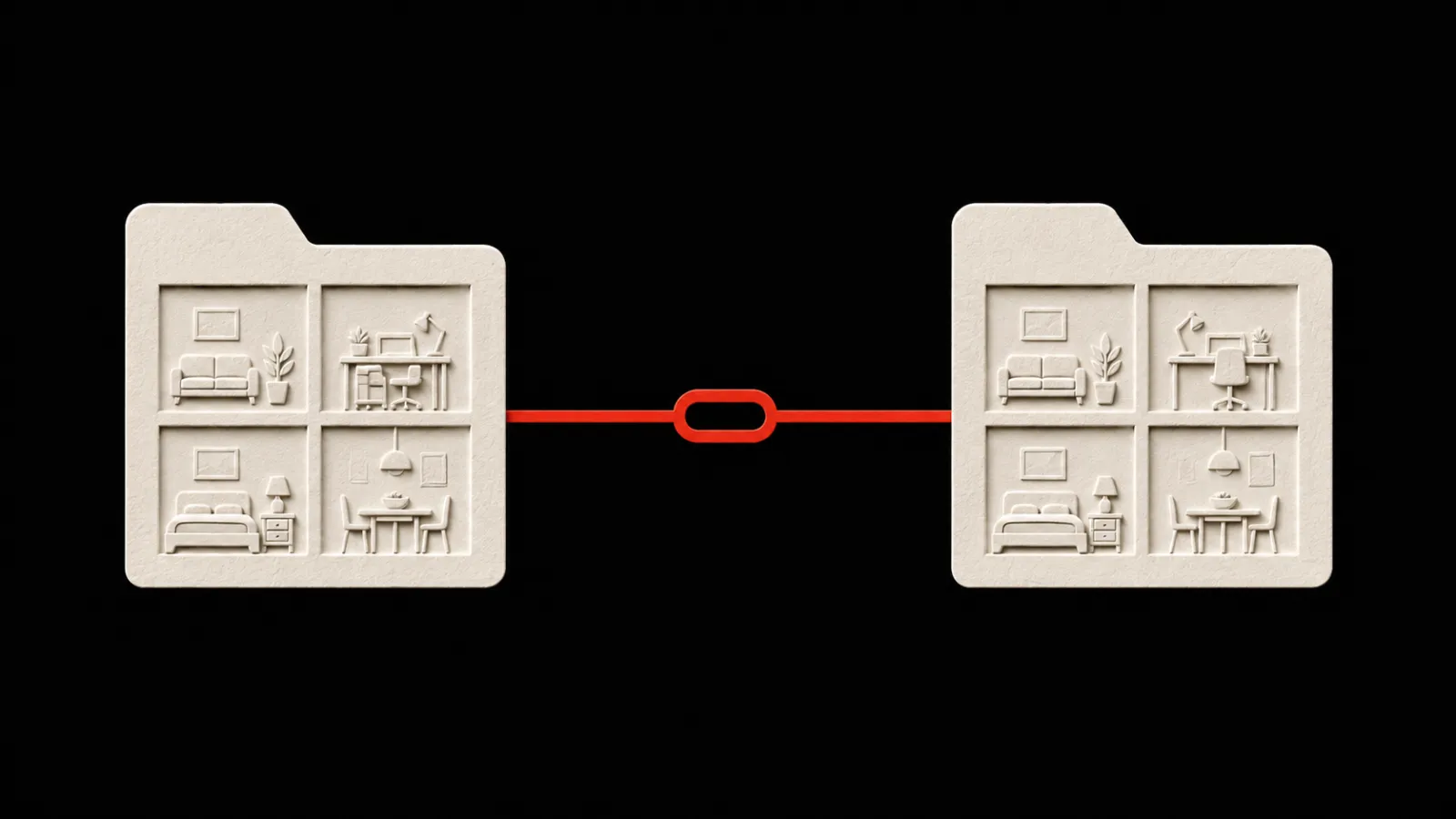
Your Room can hold four pages of Quick Pings
Coming in PingRoom v1.5.2, Pro room owners can organize up to 16 reusable Quick Pings across four swipeable pages.

A theatre crew has one rhythm before the doors open, another during the show, and another after the curtain closes. Four reusable Pings can cover one part of the evening. They get crowded when the whole production shares one Room.
Coming in PingRoom v1.5.2, a Pro room owner can add up to four pages of four Quick Pings. Swipe between the pages, then tap the Ping the Room needs. The group stays in one Room; its repeatable signals get more space.
At publication on September 14, iOS 1.5.2 is waiting for review and Android 1.5.2 is in review. The public App Store version and Google Play version are still 1.5.1. Store review and rollout timing can change.
On the cover: Pingo the Pigeon™, our official mascot and fictional CMO, considers four trays of backstage cues. AI-generated editorial artwork using approved Pingo references; not an app screen or customer scene.
Group the Pings by part of the job
Do not fill all 16 slots just because they are there. Add a page when four messages belong together and are likely to be reused.
For an illustrative community-theatre Room, three pages could cover the whole night:
| Page | Use it for | Example Quick Pings |
|---|---|---|
| 1 | Arrivals | Call time · At stage door · Sound check · Ready to open |
| 2 | The show | Places please · Five minutes · Interval · Curtain call |
| 3 | Wrap | Audience clear · Props checked · Costumes returned · Last person out |
These are setup ideas, not a customer story. Change the words to match how your group already speaks. PingRoom does not ask you to name each page, so the four Pings on it should make the grouping clear.
Keep the four most frequently used Pings on the first page. That page always stays. An extra page can be deleted later, but the first one cannot.
Add one page at a time
After v1.5.2 becomes available:
- Open a Room you own and choose Edit pings.
- Select Add page. A new page opens with four empty slots.
- Set each Quick Ping yourself, or apply a ready-made template to the page you are viewing.
- Save the changes.
- Swipe between the page bars in the Room and send a Ping as usual.
A template fills the selected page, not every page in the Room. That makes it useful for adding one coherent set without replacing the Pings you already rely on.
The newer Community preset placement guide explains how to read Add, Replace, Needs Pro, and Locked before copying a shared set into an existing Room.

In our illustration, Pingo has one cue tray open and three stacked behind it. His fictional CMO assessment is that sixteen things are manageable when only four are on the table at once.
The human room owner still chooses every label and decides who can send. Pingo does not operate Rooms, read private activity, or send on anyone’s behalf.
The Pro limit follows the Room
Extra pages are a Pro feature for the room owner. The Room can hold up to 16 Quick Pings while its owner has Pro; another member’s personal plan does not set that Room’s limit.
If the owner’s Pro access ends, PingRoom keeps the saved Pings on pages two through four. Those pages are hidden and cannot be edited or sent until the owner has Pro again. The first four Pings remain available.
Check dependencies before deleting a page
Deleting an extra page removes its four Pings when you save. If one of those Pings is used by a schedule, webhook, agent binding, or active live update, PingRoom keeps the page in place. Change that connection or finish the live update first, then delete the page.
This prevents a saved automation from quietly pointing at a different button after the layout changes.
More Pings, still one clear tap
The current PingRoom feature guide describes Rooms and reusable Quick Pings: choose the message once, then tap it when the moment happens. Pages extend that same pattern. They do not add a thread or turn the Room into a menu you have to maintain every day.
Start with four. Add the next page when your Room has another set of moments worth keeping. For the theatre crew, that means arrivals, the show, and wrap: three parts of one night, each four Pings away.

PingRoom
Short-form communication.