Google Maps Location Sharing for Live Location, Trip Progress, and Pins
Choose what people see in Google Maps, stop a live share when you're done, and send a new pickup point to your PingRoom Room.

In Google Maps, use Location sharing when someone needs to see where you are for a set time. Use Share trip progress when they need your location and ETA during one trip. If they only need to find the right entrance, share a pin. When a pickup point changes for a group that uses PingRoom, send the new point and the instruction together in one Ping.
Choose what your recipient needs to see
| They need to know | Use | What happens when you're done |
|---|---|---|
| Where you are as you move around | Google Maps Location sharing | A timed share expires. You can stop sharing sooner from the recipient's profile. |
| How far along you are on this trip | Google Maps Share trip progress | The trip share ends when you arrive or stop navigation. |
| Where to meet | A Google Maps place or dropped pin, or a place attached to a Custom Ping | The point stays fixed when you move. The recipient can revisit the message. |
If they only need a time, give them an ETA without sharing live location. There's no need to open a moving map just to tell someone which train you're catching.
Start and stop a moving share in Google Maps
- For live location, open Google Maps and tap your profile picture or initial. Go to Location sharing → New share, choose the duration, select the person, and tap Share. To end it early, return to Location sharing, select that person, and tap Stop.
- For one trip, start navigation. Swipe up on the route card, tap Share trip progress, choose the recipient, and tap Share. To end the share before you arrive, open the same card and tap Stop sharing. If you also shared your location from your profile, review that share separately.
Google documents both controls for Android and iPhone. If you're choosing between sending a live link and picking a named recipient, keep in mind that anyone who gets a live sharing link can open it while it's active. Google limits link sharing to 24 hours.
Send a new pickup point to the group
Say two friends are picking you up at the train station. Your trip share ends when you get there, and the station itself is still the destination. The driver needs the side entrance by the bike racks. The friend walking from the bus stop needs the same update.
In Google Maps, press and hold the exact meeting point to drop a pin. Open its place card and use Share to send it in a conversation everyone already follows. Add a landmark so they can tell which door you mean before opening the pin. Google Maps guide to sharing a place.
If your group already uses PingRoom for pickup changes, send one update to the Room. On iPhone, open the private Room where you can send Pings, choose Custom Ping, then use the paperclip to add a place. Set the point at the bike racks and check it before sending. Custom Pings with a shared place are included on Free. How to send a Custom Ping on iPhone.
Pickup moved to the side door by the bike racks. Use this pin instead of the main entrance.
Ask one of the people meeting you to open the point and confirm the new door. If you send a second point later, explicitly say which one replaces the first so nobody follows an old pin from the Room history.

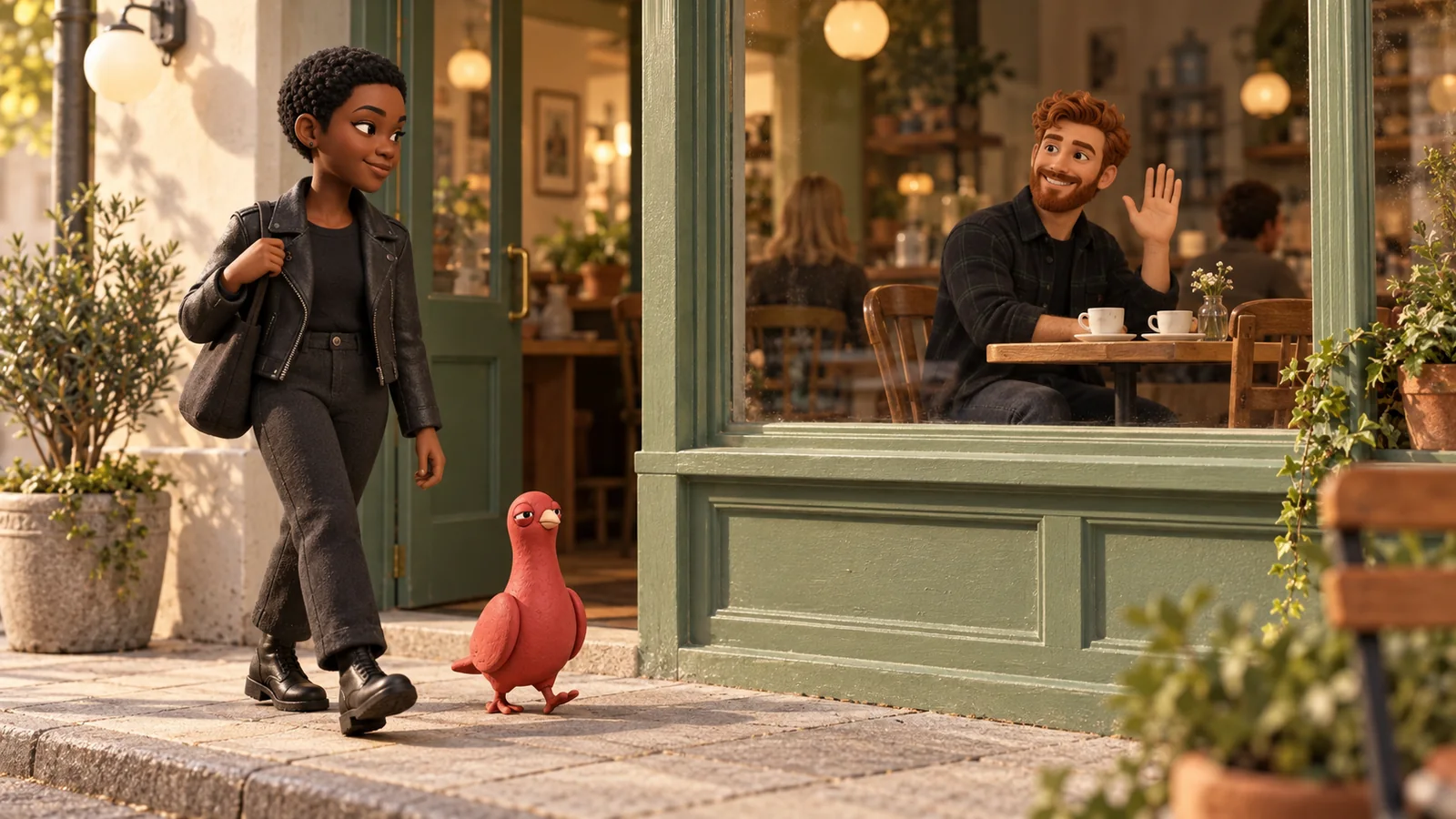
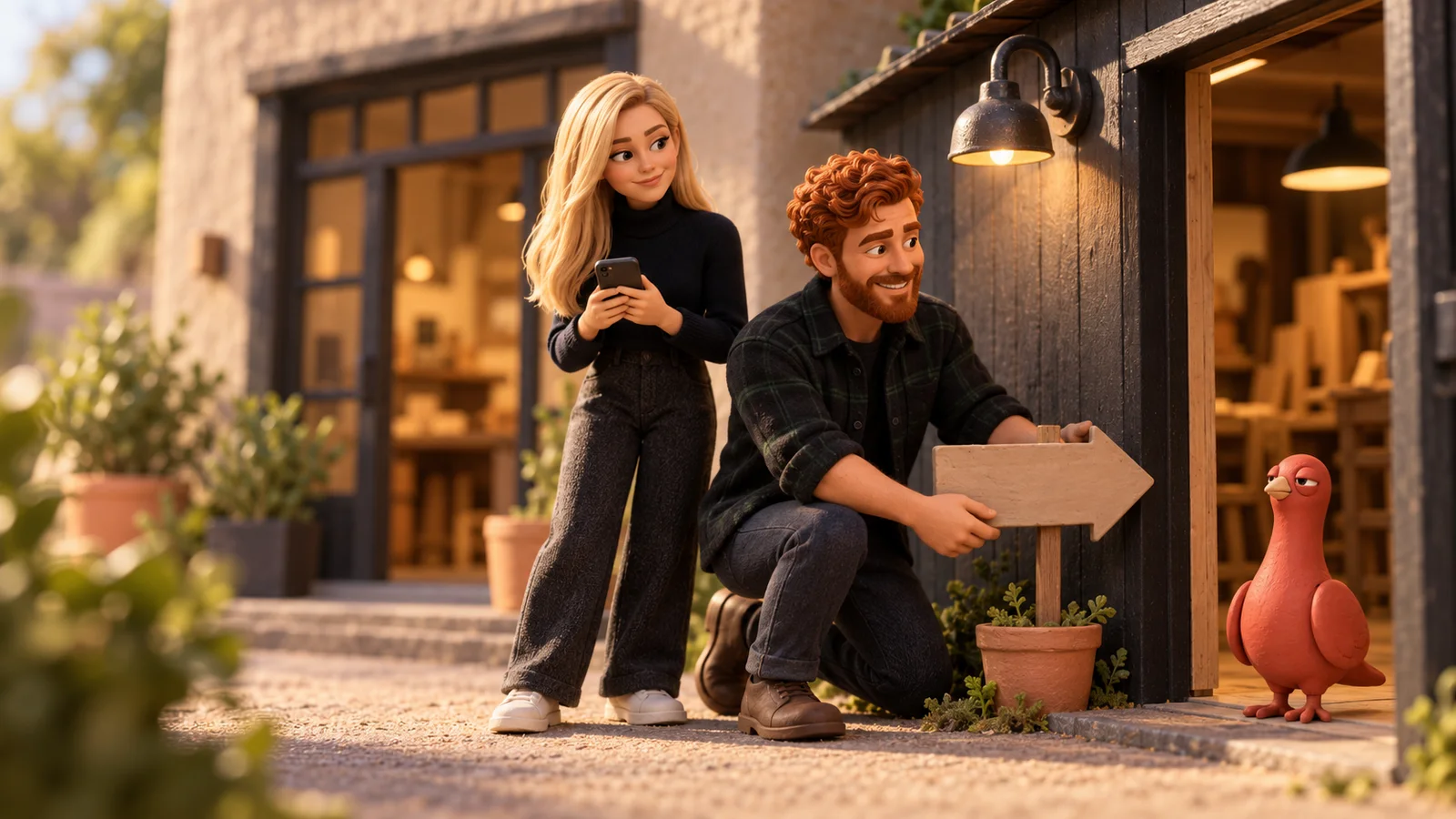
In this illustrated example, Pingo the Pigeon, PingRoom's fictional Chief Marketing Officer, has a clear view of the bike racks and offers absolutely no help with the bags.
If the same people make these pickups every week, create a private PingRoom Room and try sending one meeting point before your next trip.
The station scene is an example. Both illustrations were AI-generated with approved PingRoom character references.

PingRoom
Short-form communication.