How to Customize Your PingRoom Personal Room QR
Choose a color, style, emoji, or image for a Pro Personal Room QR, then test the real scan path before sharing it.
PingRoom Pro lets you customize a Personal Room QR with a color, Classic, Rounded, or Dots styling, plus an emoji or square image in the center. Save the design, then scan-test the final size and placement before you share or print it.
The design can change without changing the destination: the QR still opens the public handle for that Personal Room.
Open Custom QR
You need an active Personal Room with a public handle. Then:
- In PingRoom, open your Personal Room.
- Choose Custom QR. If your account is not on Pro, PingRoom will show the Pro option before opening the editor.
- Keep the live preview visible while you make one change at a time.
If you have not created the Room yet, start with Personal Rooms, handles, and contact cards. The handle is the destination; the QR is one convenient way to open it.
Choose the design in a useful order
1. Pick a color with real contrast
Start with a dark QR color against the editor's light background. A color can look distinct on a bright phone screen and still become weak on a dim display or printed stock.
Adobe's current QR design guidance recommends high contrast, a clear quiet zone, and testing under the conditions where people will scan. The QR Code's owner, DENSO WAVE, likewise specifies a clear margin around the code. Treat that empty edge as functional space, not spare decoration.
2. Choose Classic, Rounded, or Dots
All three options style the modules—the small shapes that make up the code. Choose the version that is easiest to recognize at the size you will actually use.
| Use | Sensible first choice |
|---|---|
| Small phone display or modest printed card | Classic with strong contrast |
| Larger digital card with plenty of clear margin | Rounded |
| Large, well-lit display that you can test repeatedly | Dots |
That table is a practical starting point, not a guarantee. The final scan test decides.
3. Add one center treatment
Choose a custom emoji, or upload a square PNG or SVG under 5 MB. Keep the center simple and recognizable. If the treatment makes the code slower to scan, remove it or return to a simpler style.
Tap Save before leaving the editor.
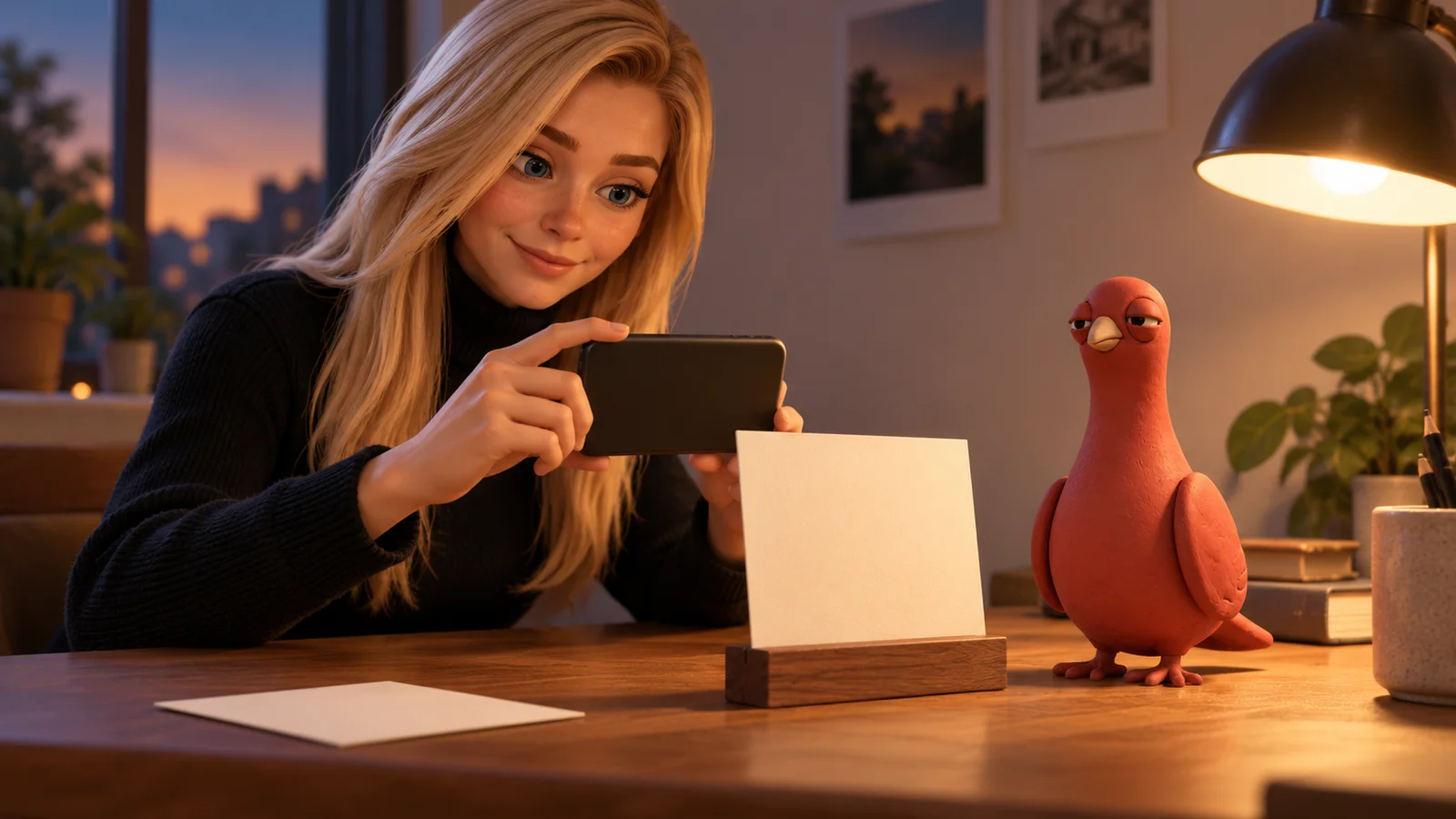
Pingo the Pigeon, PingRoom's fictional Chief Marketing Officer, has chosen to guard the empty margin. He is not a scanner, customer, or substitute for testing on real phones.
Use the four-part proof
Run these checks on the final design—not only the preview you liked while editing.
- Second-device scan. Show the QR on one device and scan it with another. If your audience is mixed, try at least one iPhone and one Android phone.
- Final placement scan. Test the actual size, material, lighting, distance, and angle. A bright screen result does not prove a glossy card or dim event sign will work.
- Destination and privacy check. Confirm the browser opens your intended Personal Room name and handle. Scanning does not publish your private contact details; contact-card access follows its own request and approval flow.
- Availability check. Confirm the Room says the QR is active and a harmless Quick Ping can be chosen. If the Room is on a break, visitors cannot scan through to Ping until you resume it.
For a conference, run the same proof before the doors open, then use the workflow in A Personal Room for conference follow-ups.
Know what a redesign does not change
Changing the color, dot style, emoji, or center image does not create a new Personal Room. The code still resolves to the same public handle.
That has two useful consequences:
- Existing cards and screens still represent the same Room while you refine the design.
- Pausing the Personal Room changes availability without requiring a new identity or handle.
It also means you should verify the destination every time you produce a new physical or digital placement. A good-looking code pointing to the wrong Room is still wrong.
Pause it when the invitation should stop
From the Personal Room's availability controls, choose Take a break when you do not want visitors to Ping for a while. PingRoom marks the QR inactive until the break ends or you turn it back on.
Use this after an event, during focused time, or while you rewrite the Room's Quick Pings. Test the public handle again after resuming.
Open your Personal Room, make one restrained QR design, and prove the scan path on the real surface before sharing it widely.
Illustrations are AI-generated editorial scenes featuring Pingo, PingRoom's official mascot and fictional Chief Marketing Officer, with fictional approved PingRoom avatars. The proofing scenes are examples, not customer stories or scan guarantees. The human team is responsible for product claims and decisions.

PingRoom
Short-form communication.