A Personal Room for conference follow-ups
Share your Personal Room QR or handle, give new contacts a few useful one-tap reasons to reach you, and take a break when the event is over.

You meet someone between conference sessions. One of you is holding coffee, the other is already late, and neither needs a new group chat.
Show them your PingRoom Personal Room QR. They can open your public handle and use a Quick Ping such as Coffee?, Send the deck, or Let’s talk when they want to pick the conversation back up.
The result is a small follow-up channel with a clear purpose. No phone number has to change hands, and nobody has to think of an opening message three days later.
Set up the reason to come back
A Personal Room belongs to one person. Its public handle gives the Room an address, while its QR code and share link give you two ways to pass that address on.
Before the event, edit the Room’s Quick Pings around the follow-ups you actually expect:
| Quick Ping | What it means |
|---|---|
| Coffee? | I have a break and would like to continue our conversation. |
| Send the deck | Please share the material we discussed. |
| Let’s talk | I would like to arrange a proper follow-up. |
| Made it back | I am back at the venue or meeting point. |
Use phrases that still make sense without a message thread around them. If Interested could refer to three different conversations, replace it with the next action you want to recognize.
Share the Room in the moment
Open your Personal Room and choose Share to send its link, or show the QR code on your phone for the other person to scan.
When the link opens in a browser, the public handle page shows the Personal Room’s name and handle before offering Open in PingRoom or Open on the web. If the native handoff does not open, the browser remains a usable path.
Opening the link does not send a Ping. It also does not reveal private contact details. The visitor decides whether to continue into the Room and which Quick Ping to use.
That preview matters on a busy floor. A person can check that they landed in the right place before making the connection.
Keep the first follow-up small

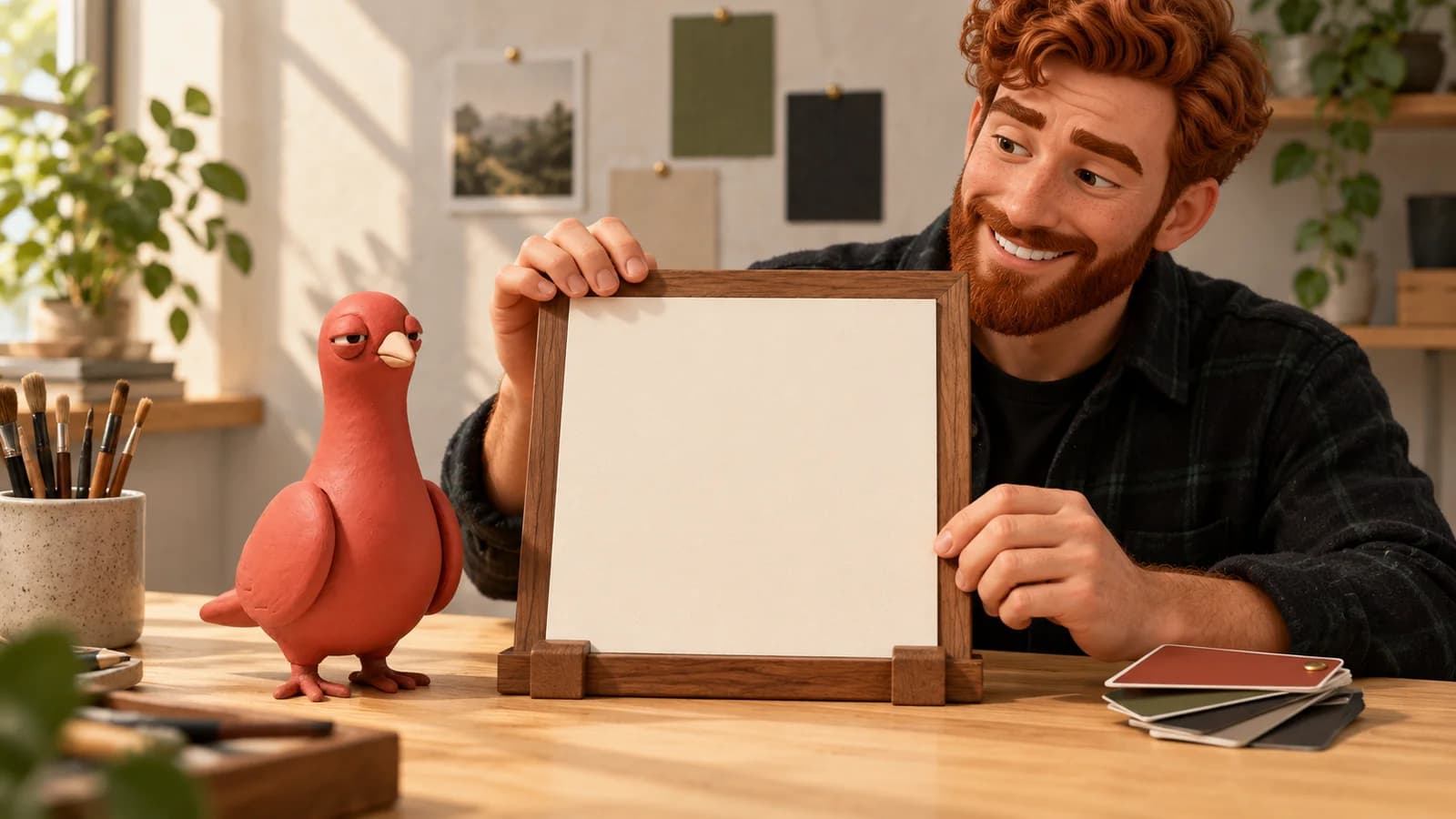
Pingo the Pigeon, PingRoom’s fictional Chief Marketing Officer, has a strict conference policy: one card, one useful next step, then let the other person finish their coffee.
Your Personal Room can work the same way. A Quick Ping is enough to restart the specific conversation you agreed to have. After Send the deck arrives, you can reply through the channel you both prefer. PingRoom does not need to become the conversation itself.
If you use a contact card too, treat that as a separate choice. Contact details are exchanged through their own request and approval flow; scanning a Personal Room QR does not publish them automatically.
Give the link a boundary
A conference QR can travel farther than the person standing in front of you. Keep the Personal Room useful after the event:
- Choose Quick Pings you are comfortable receiving from anyone you give the link to.
- Change the buttons when the next event has a different purpose.
- Use Take a break when you do not want new Personal Room Pings for a while. You can add a short pause message for people who open the handle.
- Share a contact card only when you want that person to have those details.
The standard QR and link are enough for this setup. Custom QR colors, styles, and center artwork are optional PingRoom Pro tools.
If you customize it, use the Personal Room QR proofing checklist before printing or displaying it at the venue.
Try it before the doors open
Set up the four Quick Pings, open your public handle in a browser, and check the path yourself. Make sure the Room name is recognizable and each button describes a real next step.
Then, at the event, you only need to show the QR or share the link.
Open PingRoom, set up your Personal Room, and make the next useful conversation one tap easier to resume.

PingRoom
Short-form communication.