Send Uptime Kuma Status Updates to Your Phone
Map Uptime Kuma's Down, recovered, and test events into short PingRoom Pings with a JSON-safe custom Webhook body.

Uptime Kuma can send a Down, recovered, or test update to a phone by POSTing a Liquid-rendered JSON body to a PingRoom incoming webhook. Create the webhook in a private Room, choose Webhook in Uptime Kuma 2.5.6, paste the template below, and attach that notification to the monitor you want to follow.
This is a generic webhook recipe, not a native Uptime Kuma integration. Uptime Kuma remains the monitor and source of truth. PingRoom carries the short state change to the people in one Room.
Prepare the Room and protect its URL
The destination Room's owner needs active PingRoom Pro to use incoming webhooks. Room members need PingRoom with notifications allowed if they want native phone alerts.
Create or choose a private Room, then open Settings → Connections → From another app. Add a connection named Uptime Kuma, leave Quick Ping on Custom message, and copy the generated URL. The full URL contains a secret. Do not place it in public screenshots, a shared runbook, or an exported Uptime Kuma backup.
The incoming webhook setup covers secret rotation, accepted responses, cooldowns, and phone-delivery boundaries in more detail.
Add a Webhook notification in Uptime Kuma
Open Settings → Notifications → Setup Notification, choose Webhook, and use these values. The field names below match Uptime Kuma's current 2.5.6 Webhook form.
| Field | Value |
|---|---|
| Friendly Name | PingRoom status updates |
| Post URL | your protected PingRoom incoming-webhook URL |
| Request Body | Custom Body |
| HTTP Method | POST |
| Additional Headers | the JSON object shown below |
| Resend Notification | leave off until you deliberately choose a reminder |
Use these additional headers:
{
  "Accept": "application/json",
  "Content-Type": "application/json"
}
Do not add one static Idempotency-Key here. Uptime Kuma's Additional Headers are saved with the notification, so that one key would be reused for later Down and recovered bodies. PingRoom correctly rejects the same key with different content.
Paste a JSON-safe Liquid body
Uptime Kuma 2.5.6 renders a custom Webhook body with Liquid before sending it. Paste this exact template into Custom Body:
{% if heartbeatJSON.status == 0 %}
{% assign state = "down" %}
{% elsif heartbeatJSON.status == 1 %}
{% assign state = "recovered" %}
{% else %}
{% assign state = "test" %}
{% endif %}
{% capture title %}Uptime Kuma: {{ state }}{% endcapture %}
{
  "title": {{ title | json }},
  "message": {{ name | truncate: 120, "" | json }},
  "data": {
    "source": "uptime-kuma",
    "monitor": {{ name | truncate: 120, "" | json }},
    "state": {{ state | json }},
    "observed_at": {{ heartbeatJSON.time | default: "" | json }}
  }
}
The json filter matters. It keeps a monitor name such as API "Primary" valid JSON instead of letting its quotation marks break the request. The title stays under PingRoom's 40-character limit, and the monitor name is trimmed to the private-Room message limit of 120 characters.
Keep secrets, response bodies, stack traces, and customer data out of the name and payload. A short state plus monitor name is enough for a lock screen; Uptime Kuma keeps the detailed history.
Test transport, then test the real state changes
Select Test in the notification dialog before saving. Uptime Kuma sends a test-shaped payload because no heartbeat is attached to that button. It proves the URL, headers, Liquid rendering, and PingRoom contract, but it does not prove the monitor's Down or recovered path.
After the Test Ping succeeds, save the notification and enable it on the intended monitor. Use a disposable non-production monitor for this controlled check:
- Stop its harmless target and wait for Uptime Kuma to record Down.
- Confirm one
Uptime Kuma: downPing appears with the expected monitor name. - Restart the target and wait for Up.
- Confirm one
Uptime Kuma: recoveredPing appears. - Review Uptime Kuma's history and Room history together before enabling the recipe on a production monitor.
| Event | Template state | What it proves |
|---|---|---|
| Notification dialog Test | test | URL, headers, rendering, and receiver contract |
| Monitor changes to Down | down | The notification is attached to the monitor |
| Monitor changes to Up | recovered | The real recovery path is attached and distinguishable |
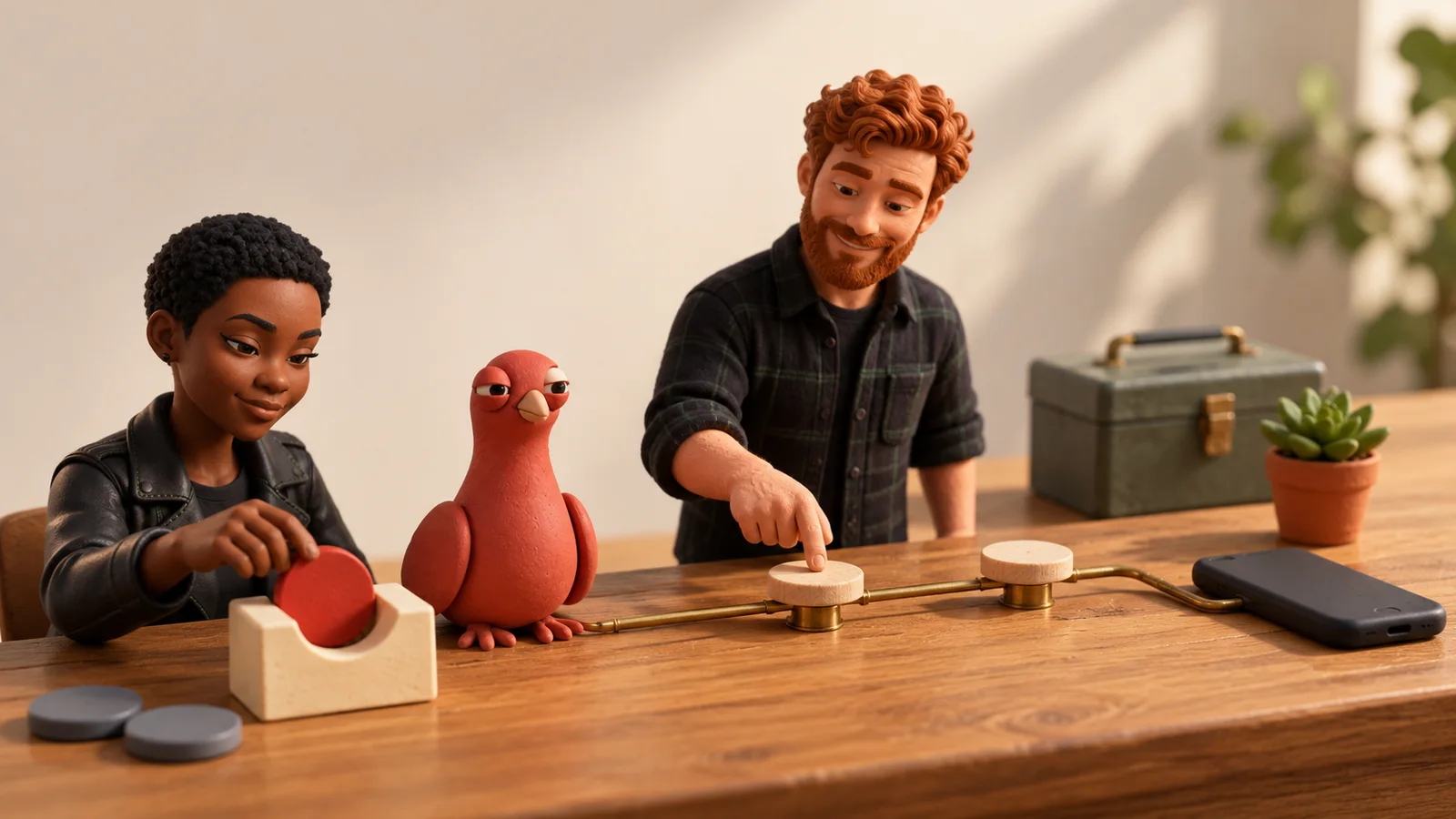
AI-generated editorial illustration. The test bench is an example, not a product screen. Pingo is PingRoom's fictional CMO and has no access to the monitor, webhook secret, phone, or Room.
Pingo's illustrated contribution is a deadpan stare at the reset token. The human team still chooses the monitor, validates both states, and decides who should receive the updates.
Decide what should reach a phone
Enable this notification only for monitors whose state change deserves a Room update. Let Uptime Kuma keep check-by-check history, and use its resend controls carefully. A reminder interval can be useful, but it can also turn one ongoing outage into repeated interruptions.
A successful PingRoom response means the Ping was accepted and queued. Connectivity, operating-system notification policy, Focus, and Room mutes can still affect what a phone displays. PingRoom's ordinary and Time Sensitive notifications are not Apple Critical Alerts, and PingRoom is not a guaranteed pager. Keep Uptime Kuma's native history and any existing escalation path authoritative for critical services.
For broader alert design, including service, environment, and incident context, use the server-down alert guide. The complete request limits and error contract live in the webhook reference.
Send one controlled monitor update
Start with a disposable monitor and a private Room. Send the dialog Test, prove a controlled Down and recovery, then enable the notification only on the monitors and for the people who need that short state change.
Create or choose the destination Room, add its incoming webhook, and keep the URL secret.

PingRoom
Short-form communication.