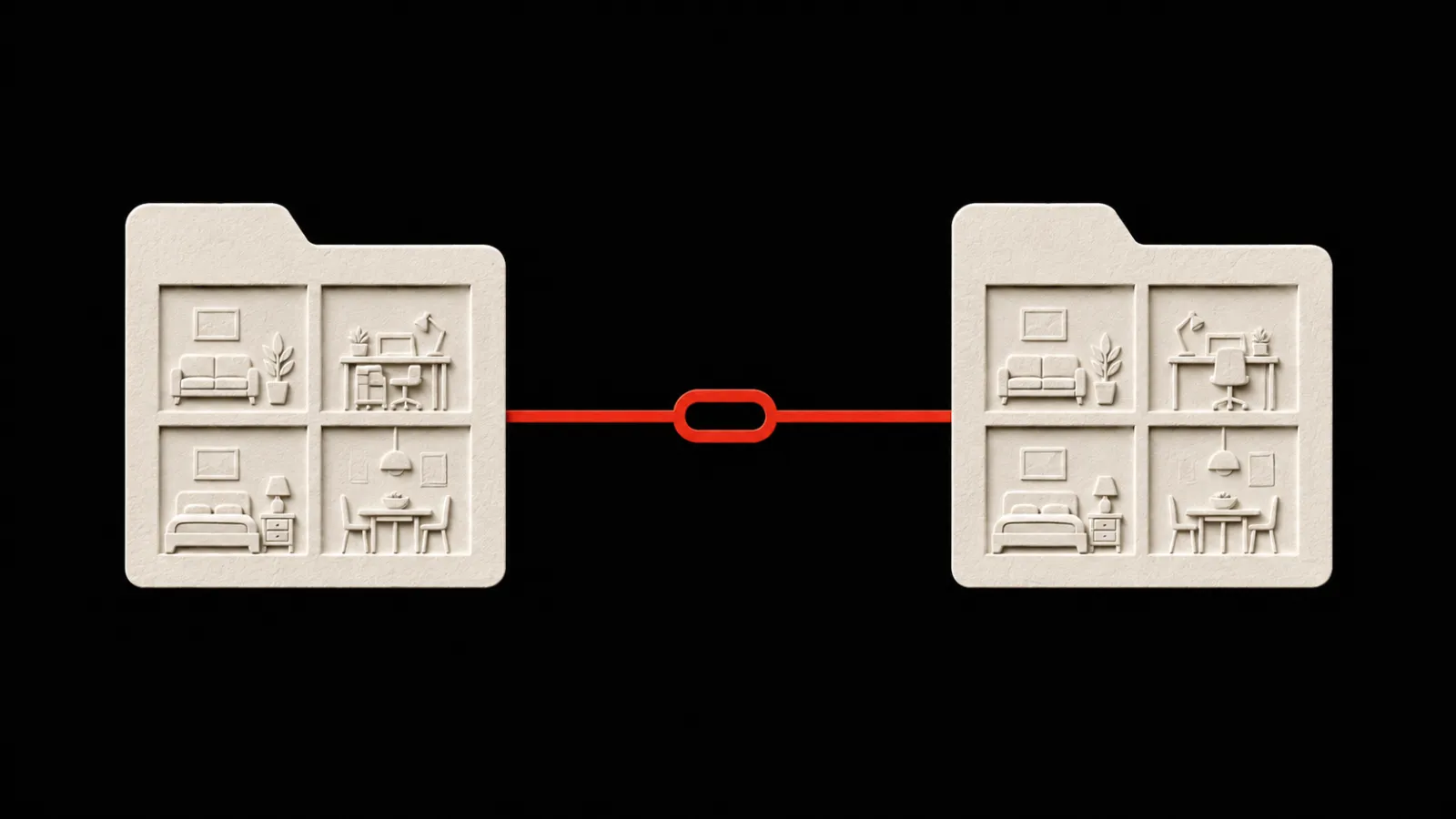
How to Organize PingRoom Rooms With Folders
Press and hold a Room, create or choose a folder, then pin, rename, or remove the folder without changing membership or notifications.

To organize PingRoom Rooms on iPhone, press and hold a Room in the Ping tab, choose New Folder or an existing folder, and save the move. Press and hold a folder header when you want to rename, pin, unpin, or delete the folder.
Folders change your Room list, not the Rooms themselves. Moving a Room does not change its members, privacy, Quick Pings, notification setting, or History.
Start with three folders or fewer
Name folders for the reason you look for a Room. A useful first pass might be:
- Home for household and family Rooms;
- Friends for plans and small-group signals;
- Projects for the few team Rooms you open regularly.
Avoid making a folder for every event, sender, and week. If a name does not help you predict what belongs inside, it is another layer to search.
The current PingRoom App Store listing describes Room folders, and the version history records their public iPhone release in 1.2. This guide covers the current organizing workflow rather than retelling that release.
Create the first folder
In the current iPhone app:
- Open the Ping tab.
- Press and hold the Room you want to file.
- Choose New Folder.
- Enter a short purpose-based name, such as Home.
- Choose Create folder.
The selected Room moves into the new folder. A Room belongs to one folder at a time, so moving it to another folder removes it from the old one.
To add another Room, press and hold it and choose the destination folder. Use the same menu to move a Room elsewhere or choose Remove from Folder. A removed Room returns to All Rooms; it does not leave PingRoom.
Pin, rename, or delete the container
Press and hold a folder header to open its actions:
- Pin folder keeps the group near the top of its page.
- Rename folder changes the label without changing the Rooms inside.
- Delete folder removes the container and returns its Rooms to All Rooms.
Deleting a folder is different from deleting a Room. Read the confirmation before acting, especially if you have created a shared-folder invitation: deleting the folder can also end links created for that folder.

In this illustrative cleanup, two fictional PingRoom avatars sort blank tokens by purpose. Pingo the Pigeon, our fictional Chief Marketing Officer, studies the shelves but does not organize anyone's account, access a Room, or make the filing decision. His visible contribution is skepticism about a folder named Miscellaneous 2.
Turn on Organized Rooms when the types matter
Open Settings, find Rooms, and turn on Organized Rooms if you want the Ping tab split into Private, Public, and Personal pages that you can swipe between.
Use the pages for Room type and folders for your own purpose. For example, Home might contain private household Rooms, while a public neighborhood Room appears on the Public page. Turning on Organized Rooms does not make a Room more private or public; it changes the layout.
Choose the control that matches the problem
Folders solve one narrow problem: finding a Room again.
| What you want to change | Use this control |
|---|---|
| Group related Rooms in your own list | Personal folder |
| Invite someone to several related Rooms at once | Shared-folder link |
| Keep one Room easy to reach | Pin the Room or its folder |
| Stop regular alerts from a Room or one member | Mute the Room or member |
| End your membership | Leave the Room |
| Permanently remove a Room you own | Delete the Room |
These controls are not interchangeable. A folder does not grant access, mute anyone, or prove that a recipient saw a Ping. A shared-folder invitation affects joining; your personal folder arrangement affects where Rooms appear for you.
Do one five-minute cleanup
Use this worked example as a starting point, not a required structure:
- Create Home, Friends, and Projects.
- Move only the Rooms you opened in the last two weeks.
- Leave uncertain Rooms in All Rooms instead of inventing a catch-all folder.
- Pin the one folder you expect to use today.
- After a week, rename or remove any folder that still makes you hesitate.
The goal is not a perfect taxonomy. It is a Room list where the next signal takes less searching.
Open PingRoom Rooms, create one purpose-based folder, and move two related Rooms into it.
Illustrations are AI-generated editorial scenes featuring Pingo, PingRoom's official mascot and fictional Chief Marketing Officer, with fictional approved PingRoom avatars. The folder cleanup is an example, not a customer story. The human team is responsible for product claims and decisions.

PingRoom
Short-form communication.