How to Install the PingRoom Android Beta APK
Install the official PingRoom Android beta, keep Play Protect on, verify version 1.6.2 (105), and understand how later APK updates work.
To install the PingRoom Android beta, open pingroom.io/beta on the Android device, confirm that the page shows Android 1.6.2 (105), then tap Get Android beta. If Android asks, allow installs for the browser or Files app handling this one download, keep Google Play Protect enabled, and revoke that source permission after installation.
This is a direct beta APK, not a Google Play update. Use the Play listing when you prefer store-managed updates; use the beta when you deliberately want the current test build and are prepared to check for later APKs yourself.
Choose the beta or Google Play first
The two Android routes have different maintenance contracts:
| Route | Best fit | How later builds arrive |
|---|---|---|
| Google Play | You want the current public release and store-managed updates | Google Play checks and applies eligible updates under your device settings |
| PingRoom beta | You want the current Android test build and accept pre-release behavior | You revisit the official beta page, compare the version, and install a newer APK manually |
At the time of this guide, the beta page offers Android 1.6.2 (105). The current Google Play listing remains on the public 1.6.1 line. That difference is expected; it does not make the APK a production-release announcement.
PingRoom's two-platform beta overview explains why iPhone uses TestFlight while Android receives a direct APK. This guide stays with the Android installation and update boundary.
Before downloading
Use the Android device where you intend to test, then make three checks:
- Open the beta page by typing or following the first-party
pingroom.io/betaaddress. Do not install an APK copied from a forum, file mirror, message, or unrelated download page. - Confirm the Android card shows version 1.6.2 and build 105. If the page has moved to a later build, use the version displayed there rather than treating this article as the download record.
- If the current PingRoom session is a guest account you care about, add and verify an email before changing installations. Do not assume that uninstalling an app will preserve its local data.
The current APK declares Android 8.0 as its minimum. A compatible phone can still have manufacturer-specific settings labels, storage limits, or organization policies that prevent installation.
Download and install the APK
- On the official beta page, tap Get Android beta.
- Let the browser finish downloading the APK. Open the completed download from the browser or the Files app; do not rename or move it through an untrusted service.
- If Android says the source cannot install unknown apps, open the setting offered by Android and enable Allow from this source only for the app handling this download.
- Return to the installer and review the app name before tapping Install.
- Keep Google Play Protect turned on. It checks apps installed outside Google Play and may ask to scan, warn about, disable, or block an app. If it presents an unresolved warning or blocks the install, stop instead of disabling protection to finish the tutorial.
- When Android reports that installation is complete, open PingRoom.
Android 8 and later grants this permission per source. Allowing your browser does not grant the same permission to every app, and using it once does not require leaving it enabled.
Stop if Android asks you to uninstall first
Android normally treats an APK as an in-place update only when the application ID, signing identity, and version rules are compatible with the installed app. If it reports a package conflict or says you must uninstall the existing PingRoom app, cancel the installation.
An uninstall can erase local app data. Before choosing that route, make sure the account can be recovered, note the Rooms you need, and decide whether the beta is worth replacing the current installation. Staying on Google Play is a valid outcome.
Verify the build and run one harmless test
Open Android's App info for PingRoom and find the version entry. Settings paths vary, but it is commonly under Settings → Apps → PingRoom. For the build documented here, the expected version is 1.6.2; the beta page provides build 105 as the second identifier.
Then use a non-critical Room and a second person or device:
- Choose a harmless Quick Ping whose meaning is obvious to both participants, such as Test only.
- Send it once.
- Confirm that it appears in the expected Room on the receiving account.
- If you are also evaluating notification presentation, test that separately. Android notification permission, Room mute settings, connectivity, and device controls can affect whether a banner appears even when the Ping reaches the Room.
The Android notification-permission guide covers that separate device setting.

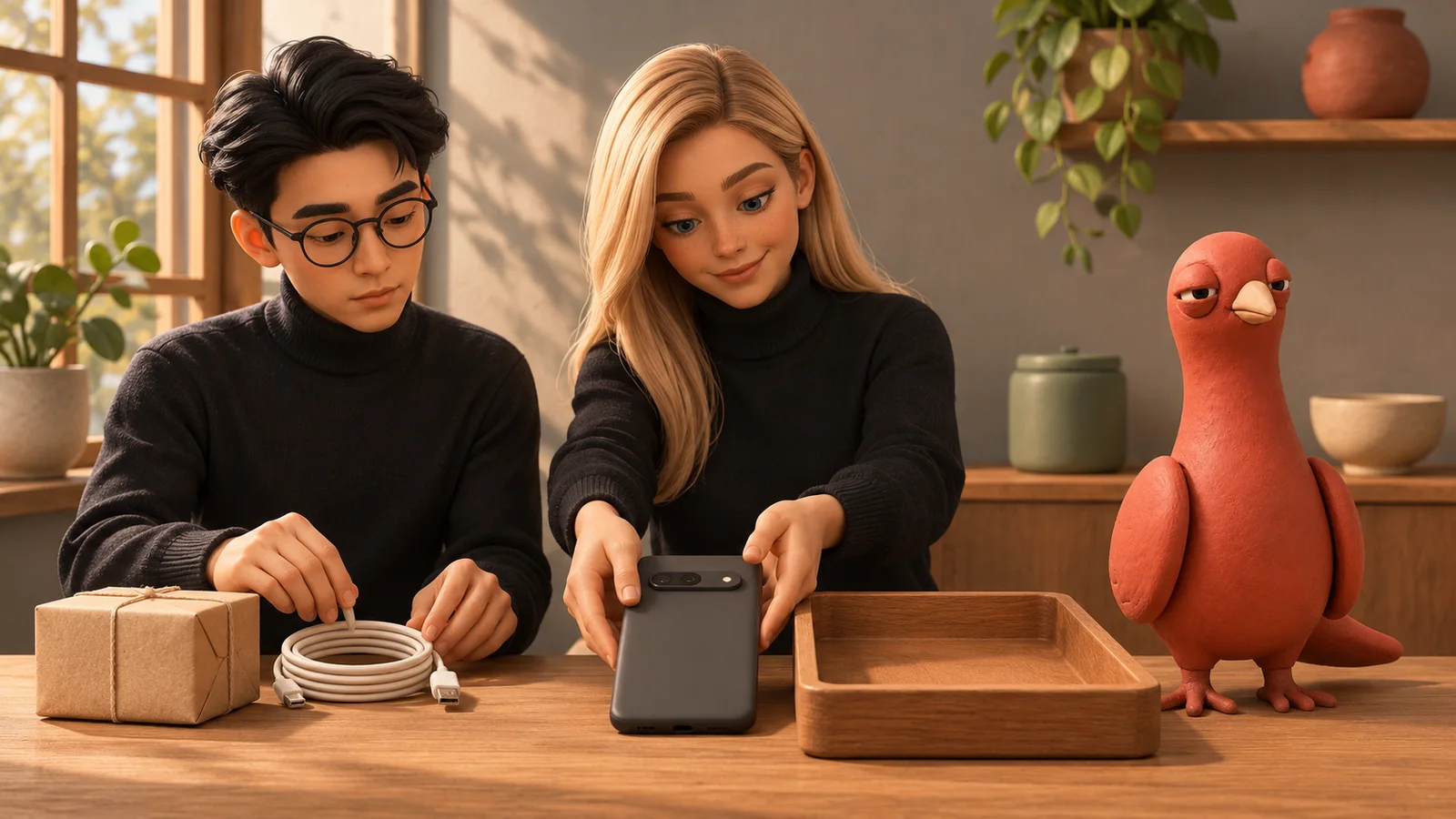
In the illustrations, Pingo the Pigeon, PingRoom's official mascot and fictional Chief Marketing Officer, has reduced the installation philosophy to one open tray and one test signal. He cannot inspect a device, approve a security prompt, install an APK, or send a Ping on anyone's behalf. Those decisions remain with the people running the test.
Revoke the source permission
After installation, return to the Install unknown apps settings for the browser or Files app you used and turn Allow from this source off. The exact path varies by device, but Android can usually open it from the app's special-access settings.
Revoking the permission does not remove the installed beta. It restores the useful default: a future APK needs a new, deliberate approval instead of inheriting an open install route.
Update the beta manually
A direct APK does not receive later beta builds through Google Play. For each update:
- Revisit the official beta page.
- Compare its Android version and build with Android's App info.
- Download only when the page shows a newer build you intend to test.
- Grant the source permission only if Android asks again.
- Install over the existing beta when Android accepts it, then repeat the harmless Room test.
- Revoke the source permission again.
If Android rejects an in-place update, do not work around the error by obtaining a differently signed APK elsewhere. Stay on the installed build, return to Google Play, or wait for PingRoom to publish a compatible first-party build.
Return to Google Play deliberately
When you no longer want beta maintenance, open the official Google Play listing and compare the public version with the installed beta. Android may allow a compatible store update when the store version advances; it may also require a reinstall when version or signing conditions do not line up.
If a reinstall is required, treat it as a data-removal step: confirm account recovery first, then uninstall and install from Google Play. Do not alternate between beta and store builds merely to chase the larger version number.
Open the official PingRoom beta page, check the displayed Android version, and use the direct APK only if the manual-update contract fits your test.
Illustrations are AI-generated editorial scenes featuring Pingo, PingRoom's official mascot and fictional Chief Marketing Officer, with fictional approved PingRoom avatars. The installation and receive-check scenes are examples, not product screens, customer accounts, or proof of device behavior. The human team is responsible for product claims and decisions.

PingRoom
Short-form communication.